

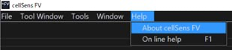
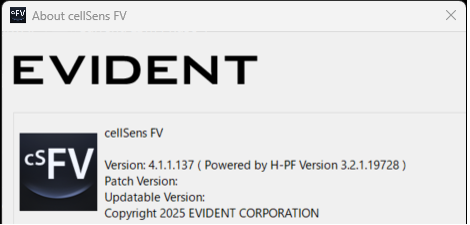
cellSens FV Imaging Software Version 4.1.1 | cellSens FV Imaging Software Version 4.1.1These instructions are for cellSens™ FV imaging software version 4.1.1 for the FLUOVIEW™ FV5000, FV5000MPE, FV4000 or FV4000MPE laser scanning microscope. Notices Before Installing the Software1. Please check whether your current software can be updated to version 4.1.1 following the procedure below. 1) Launch cellSens FV software. 2) Select “About cellSens FV” from the Help menu. 3) Confirm the updatable version in the “About cellSens FV” window. The updatable version is determined based on the message displayed.
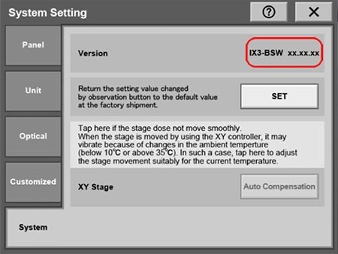
* If your current license is not valid for upgrading to this version, please purchase an upgrade (your current version must be version 3.1.1 or later). 2. Please check the software version of the touch panel controller (TPC) attached to the FLUOVIEW system. * If you have a version earlier than 1.5.5, please update the IX83 software and firmware: Software installer fle: IX83 Software (IX3-BSW): Version 1.5.5 “installer_IX3-BSW_010505.zip" For the BX63L or FV30GF, please confirm you have BX3L-BSW software version 1.4.3. * If you have a version earlier than 1.4.3, please update the BX3-BSW software and BX63L firmware: Software installer fle: IX83 Software (IX3-BSW): Version 1.5.5 “installer_IX3-BSW_010505.zip" *To check which version of IX3-BSW/BX3L-BSL software you have, follow these steps: 1) Power on the IX3-CBH/BX63L-CBH. 2) Power on the touch panel controller after confirming the beep sound from IX3-CBH/BX63L-CBH. 3) Tap the System Setting button on the Menu screen of the touch panel controller to display the System Setting screen. Check the version displayed. 3. Please update to the latest firmware for the FV4000/FV4000MPE/FV5000/FV5000MPE updating to cellSens FV imaging software version 4.1.1. 4. Please install the latest bug fixing program when updating to cellSens FV imaging software v. 4.1.1. 5. If you have a license for TruAI™ noise reduction (FV40S-AINR), please update the TruAI noise reduction software to the latest version after updating to cellSens FV imaging software version 4.1.1. 6. If you have a license for Fluoview Smart (FV50S-UI), please update the AIAssist tool to the latest version after updating to cellSens FV imaging software version 4.1.1. Installation Procedure1) Close all software applications. 2) Decompress the downloaded zip file. Save the decompressed file in the appropriate location (desktop, etc.) on the PC. 3) Execute setup.exe in the DISK1 folder; administrative privileges are required. 4) Start the installation according to the instructions displayed on the screen. * When you want to add optional licenses or update the license, please activate the added licenses. To do so, follow the license activation procedure in the “cellSens FV Procedure for License Activation” document. |
|
Sorry, this page is not
available in your country.