

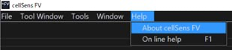
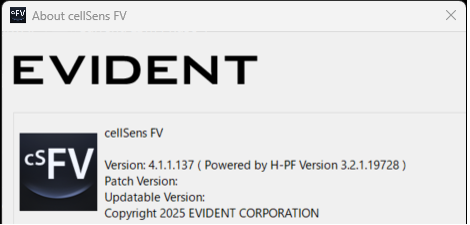
cellSens FV Viewer and cellSens FV Desktop Version 4.1.1 | cellSens FV Viewer and cellSens FV Desktop Version 4.1.1The images acquired by FLUOVIEW™ FV5000, FV5000MPE, FV4000, FV4000MPE, FV3000, and FVMPE-RS laser scanning microscopes can be reviewed in the cellSens™ FV Viewer software. The file formats OIR, OIF, OIB, and VSI are supported. You can export files to general file formats, such as BITMAP, JPEG, PNG, TIFF, AVI, MP4, OIF, OIB, and FLUOVIEW Multi-TIFF. If you have a license for cellSens FV Desktop, the image analysis, processing, and 3D view functions are available. 1. Confirm the upgradable versionIf you already use cellSens FV Desktop, please check whether your software can be updated to this version using the procedure below. 1) Launch the cellSens FV Desktop software. 2) Select “About cellSens FV” from the Help menu. 3) Confirm the updatable version in the “About cellSens FV” window. * The updatable version is determined depending on the message displayed:
* If your current license is not valid for upgrading to this version, please purchase the upgrade to access the latest version (your current version must be version 3.1.1 or later). 2. System requirements
* When cellSens FV software and the TruAI™ noise reduction function are installed together, RAM should be 64 GB or higher and graphics should be NVIDIA RTX 4500 Ada or higher.
* Set 100% on Windows display settings for texts, apps, and other items. 3. Installation procedure1) Close all software applications. 2) Decompress the downloaded zip file. Save the decompressed file in the appropriate location (desktop, etc.) on the PC. 3) Execute setup.exe in the DISK1 folder; administrative privileges are required. 4) Start the installation according to the instructions displayed on the screen. * If you have a license for cellSens FV Desktop, please activate your license after installation following the procedure in the “cellSens FV Procedure for License Activation” document. * If you have a license for TruAI noise reduction (FV40S-AINR), please update the TruAI noise reduction software to the latest version after updating to cellSens FV imaging software version 4.1.1. Software installer file: cellSens FV TruAI Noise Reduction Version 4.1.1 “cellSenseFV_TruAINoiseReductionInstallTool_4.1.1_2.zip” 4. Uninstallation procedure* If you have a cellSens FV Desktop license, make sure to deactivate the license before uninstallation. If you do not deactivate the license before uninstalling, you will not be able to reactivate the license on another PC. The procedure to deactivate the license is in the “cellSens FV Procedure for License Activation” document. 1) Close all software applications. 2) Open Settings from the Start menu and click Application. 3) Select “cellSens FV” from the list on the Applications and functions window, then click the Uninstall button. When the confirmation message appears, click the Yes button. |
|
Sorry, this page is not
available in your country.