

Bug fixing program for cellSens FV / cellSens FV Desktop / cellSens FV Viewer Ver4.1.1 | Bug fixing program for cellSens FV / cellSens FV Desktop / cellSens FV Viewer Ver4.1.1This program solves software bugs in following software:
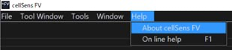
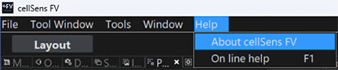
This program cannot be used on any software or version except for the ones mentioned above. To confirm which version of cellSens FV software you have, follow these steps: 1) Launch cellSens FV software. 2) Select “About cellSens FV” from the Help menu.
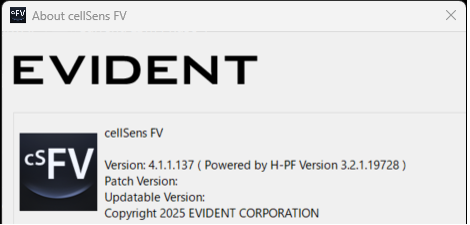
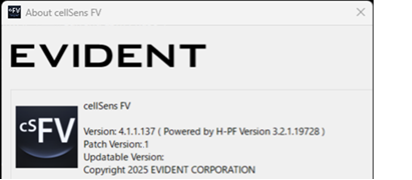
3) Confirm your version in the “About cellSens FV” window.
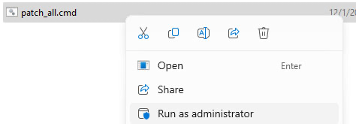
Please confirm in the “About cellSens FV window” that the current version is 3.1.1.67. If your version is different, this bug fixing program will not work. Installation procedure1)Close all software applications. 2)Save the downloaded file in the appropriate location (desktop, etc.) on the PC. 3)Decompress the downloaded file. 4)Execute “patch_all.cmd” by right clicking and selecting “Run as administrator.”
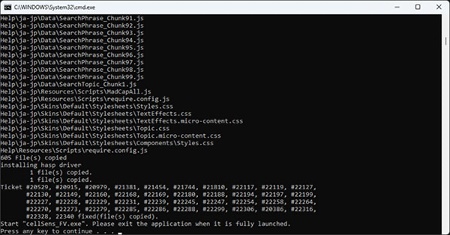
5)After installation is finished without any error message, press any key to exit.
* If the message “FV50S-SW 4.1.1.137 not found!” is displayed, the software version is not v. 4.1.1. 6) cellSens software automatically starts in Desktop/Viewer mode to load the changes.
7)Confirm “Patch version” in the “About cellSens FV” window.
8) Exit the software to finish installation. |
|
Sorry, this page is not
available in your country.