

Product Information
How to Check the Imaging Software Magnification Settings
Two software products can be used for length measurement:
- cellSens software (for PC)
- Stand-alone camera connection kit DP2-SAL/DP2-AOU control software
To confirm that the measurement settings are correct, youʼll need a 0.01 μm stage micrometer from Evident or a third party. These can be purchased from Evident.
Evident: Stage micrometer
Model: OB-M1/100micro
How to check the magnification:
Step 1: Set the objective micrometer on the microscopeʼs stage.
Step 2: Move the stage so that the micrometerʼs scales are in the center of the screen. Make sure theyʼre in focus.
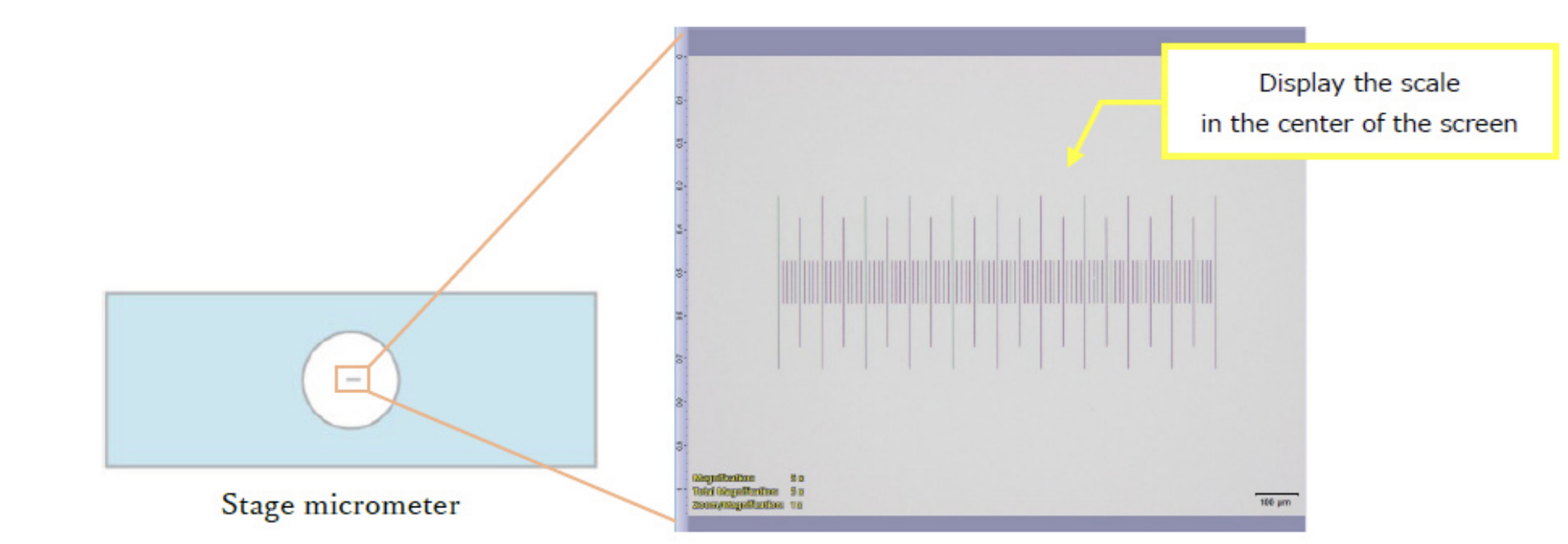
*Image shown is from cellSens software
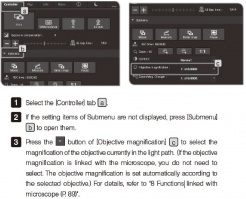
Step 3: Check that the magnification of the objective youʼre using is correctly selected in the software.
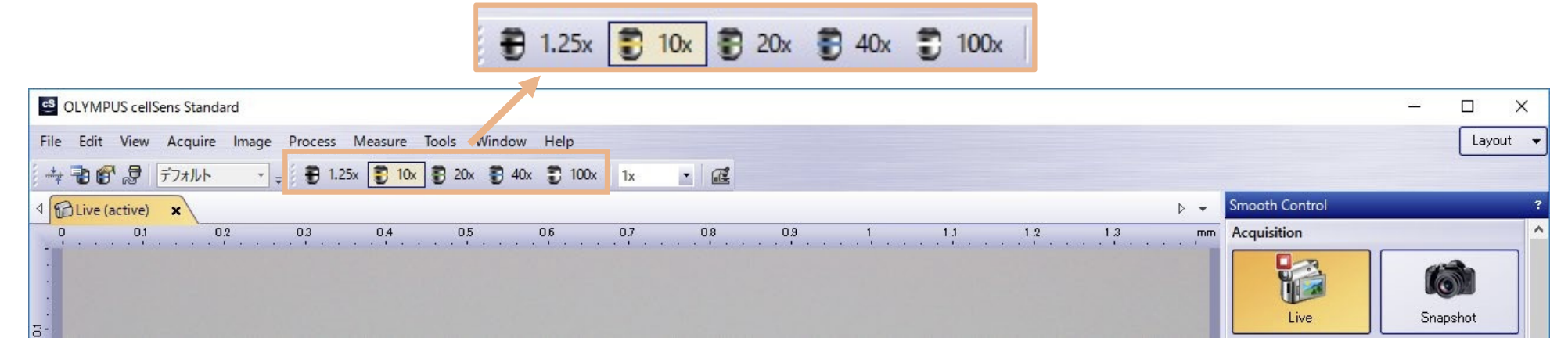
cellSens standard layout
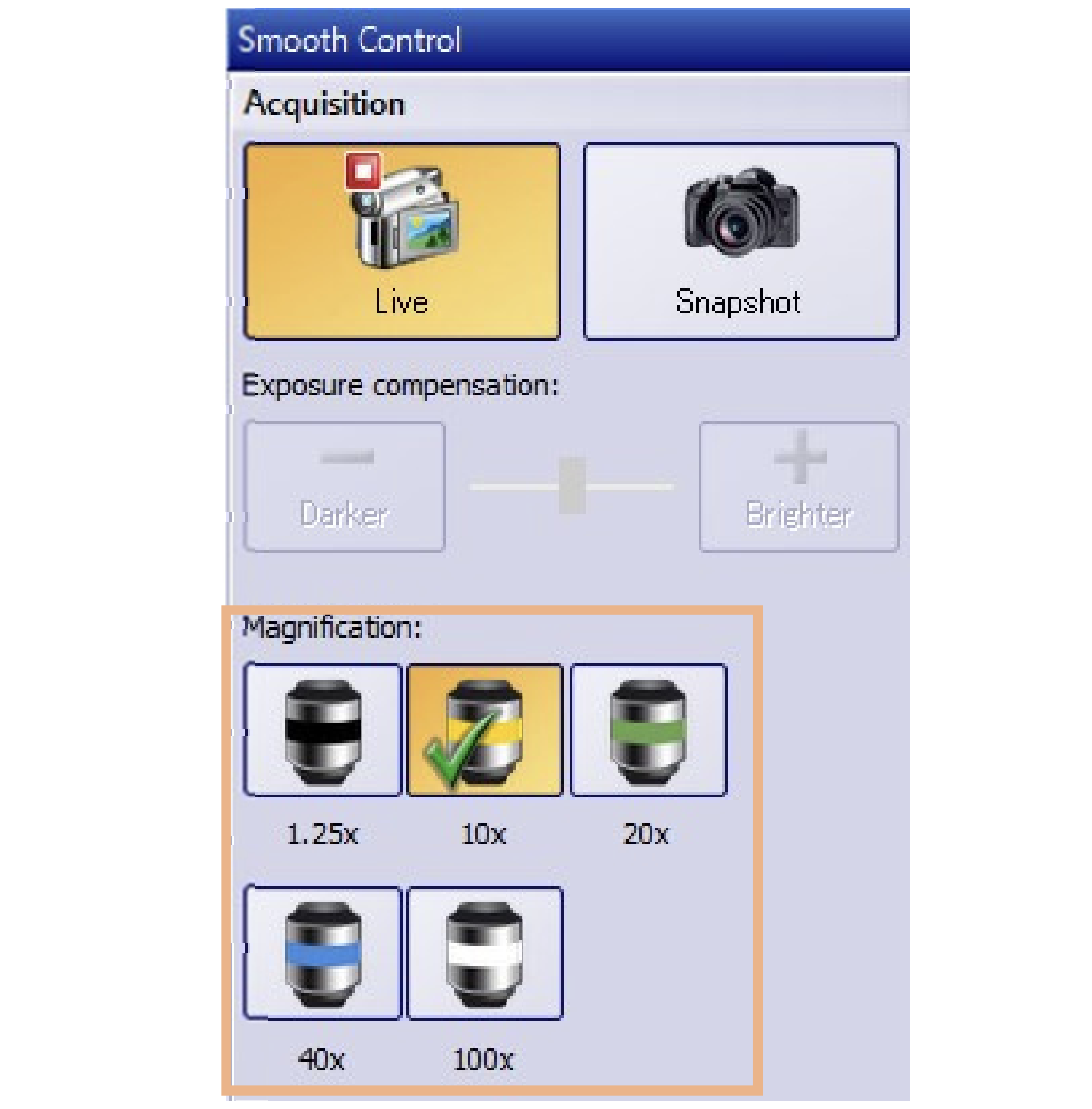
cellSens simple layout
Stand-alone camera software (DP2-SAL) |
Stand-alone camera software (DP2-AOU) |
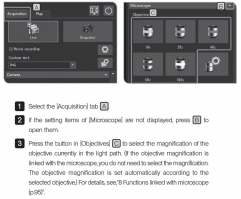
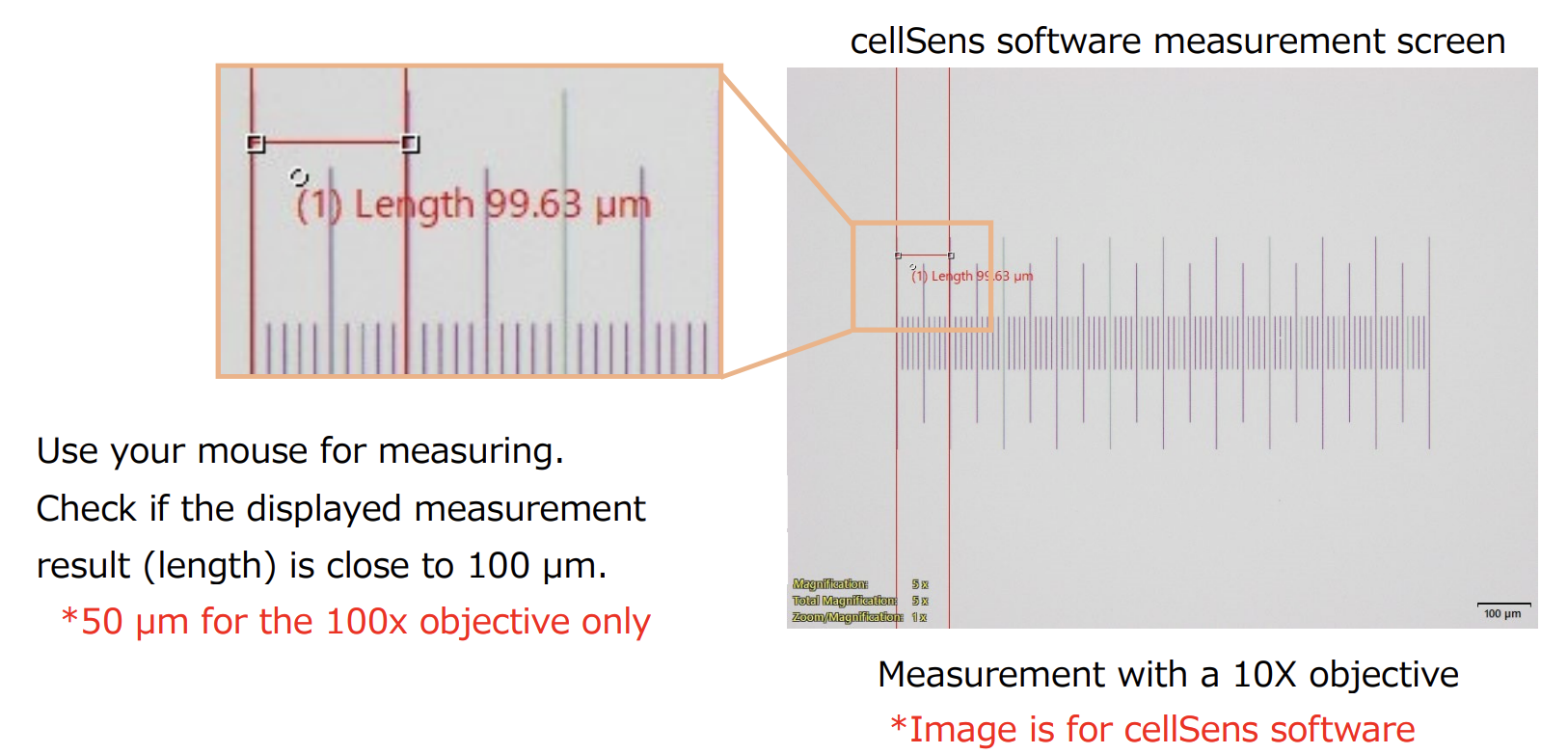
Step 4: Measure using the scale function and check that the results are correct.
✓ 100x objective: 50 µm (5 divisions)
✓ Objectives other than 100x: 100 µm (10 divisions)
cellSens Software Measurement Method
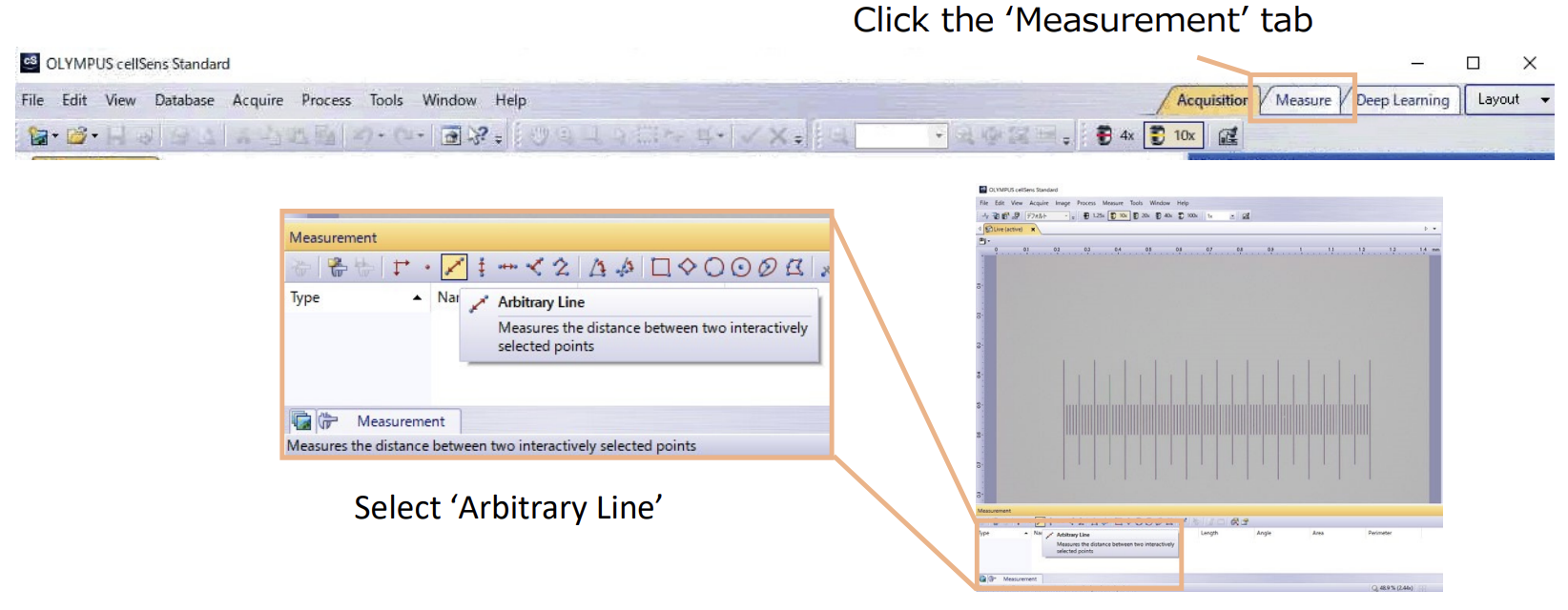
Note: For details about the stand-alone connection kit (DP2-SAL/DP2-AOU) measurement method, please refer to the softwareʼs instruction manual.
Step 5: Repeat step 4 for the objectives you are going to use.
*When you change objectives, be sure to verify the settings (see step 3).
If the measurement results differ from what you expect, thereʼs a possibility that the magnification setting is not correctly specified. Please check the magnification setting and change it if itʼs not correct.
If you have any questions, please contact your local Evident sales representative or our customer support center.
Sorry, this page is not
available in your country.